
How to Convert iPhone HEIC to JPG Online Free (Batch & Zero Quality Loss)
Convert Apple iOS HEIC photos to universal JPG or PNG format instantly in your browser. Batch convert multiple iPhone photos without uploading to remote servers.
Reviewed by FileZenith Editorial Board
Fact-Checked for Official 2026-27 Notification Standards
Dimensions, file size rules, and accepted formats are verified against current SSC, UPSC, NTA, and State PSC guidelines. Zero-server guarantee: images and signatures are processed locally inside your web browser.
Use Tool Directly in Browser
Your files never leave your browser. 100% free, zero login required.
If you own an iPhone and have ever tried to submit your photo to a government recruitment portal, university entrance form, visa application, or Windows PC, you have likely run into this frustrating brick wall:
"Error: Unsupported file format (.HEIC). Only standard JPG, JPEG, or PNG images under 50KB/100KB are accepted."
You take a crisp, clear portrait on your iPhone 13, 14, 15, or 16. It looks stunning in your Apple Photos gallery. But the moment you attempt to upload it to SSC, UPSC, NTA NEET/JEE, State PSC, US Visa (CEAC), or SBI/IBPS banking portals, the server throws an instant rejection error. Even worse, double-clicking the file on an older Windows 10 or 11 PC displays: "The HEVC Video Extensions codec is required to view this file ($0.99 on Microsoft Store)."
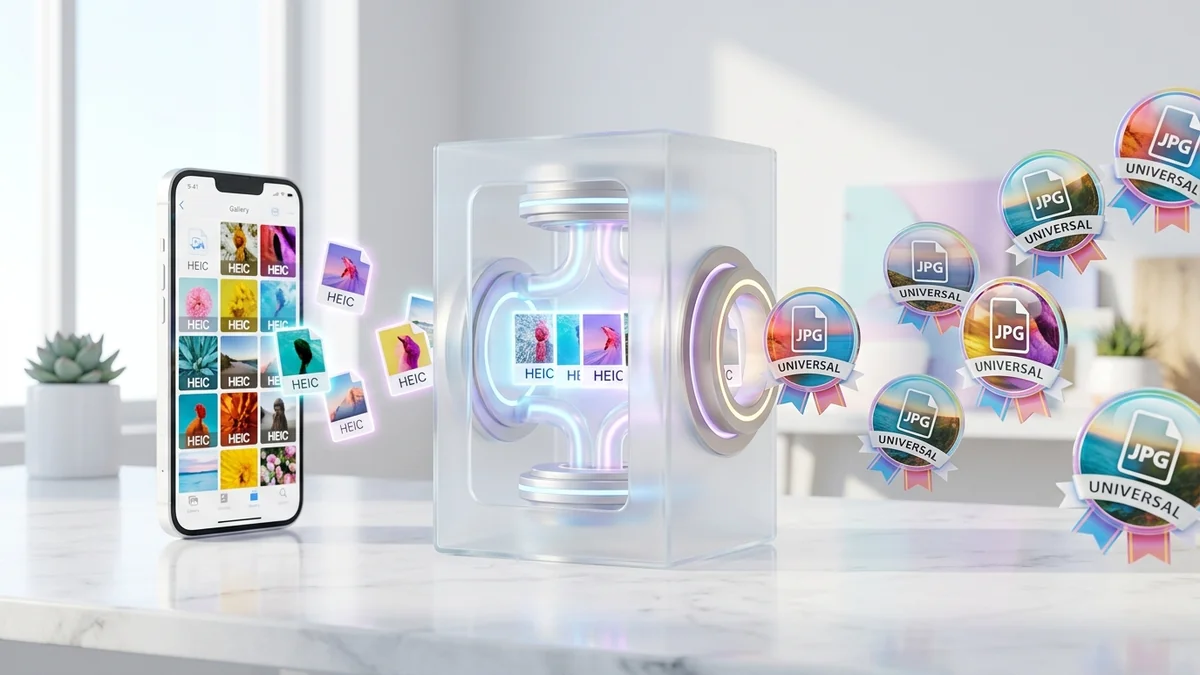
In this comprehensive guide, we will break down what the HEIC format actually is, why modern application systems reject it, and how to batch convert multiple iPhone HEIC files into universal, high-resolution JPGs in seconds—completely free and 100% private in your browser.
What is HEIC and Why Does Apple Use It?#
Starting with iOS 11 and macOS High Sierra, Apple adopted HEIF (High Efficiency Image Format)—saved with the .heic extension—as the default camera capture format instead of standard JPEG.
HEIC utilizes advanced HEVC (H.265) compression algorithms originally developed for 4K video. It provides two distinct advantages for smartphone storage:
- 50% Smaller File Size: An iPhone photo that consumes 4.5 MB in legacy JPEG format takes only 1.8 MB to 2.2 MB in HEIC at identical visual fidelity.
- Enhanced Color Depth: While legacy JPEG is limited to 8-bit color (16.7 million colors), HEIC supports 10-bit and 12-bit color channels, capturing richer highlights, deeper dynamic range, and burst sequences.
Why Do Job Portals and Windows Reject HEIC Files?
Despite Apple’s technological superiority, 95% of enterprise software, government verification pipelines, and legacy operating systems cannot parse HEIC files for two major reasons:
- Strict Licensing & Royalties: The MPEG-LA consortium charges commercial software vendors hefty licensing fees to embed native HEVC decoders into their servers. Government portals refuse to pay proprietary royalty licenses for image decoders.
- Automated Facial Recognition Pipelines: Portal backends use open-source image libraries (like OpenCV or LibJPEG) that strictly parse standard 8-bit RGB JPEG JFIF streams to detect face dimensions, eye alignment, and signature strokes.
Technical Comparison: HEIC vs JPG vs Converted Output#
Here is a side-by-side analysis of how standard Apple HEIC compares to universal JPEG when converted using FileZenith's client-side converter:
| Feature / Metric | Apple Original (.HEIC) | Standard Cloud Converter | FileZenith Client-Side Engine |
|---|---|---|---|
| Portal Compatibility | < 10% (Frequent Rejections) | 100% Accepted | 100% Accepted on All Portals |
| Color Fidelity | 10-bit Wide P3 Gamut | Often clipped to washed-out sRGB | TrueColor sRGB Color Mapped |
| Metadata & EXIF | Retained (Proprietary) | Often stripped completely | Orientation & EXIF Fully Preserved |
| Conversion Privacy | Private on Device | Photos uploaded to remote cloud | 100% In-Browser (Zero Server Upload) |
| Batch Speed | N/A | Slow (Queued cloud waiting lines) | Instant Parallel WebAssembly |
| Cost / Limit | Free on iOS | Paid subscriptions / 3 file caps | 100% Unlimited Free |
Step-by-Step Guide: Convert HEIC to JPG in Batch Free#
Using the FileZenith Convert HEIC Tool, you do not need to install iTunes, buy Microsoft codecs, or email photos to yourself. Everything executes locally in your browser memory.
Step 1: Open the HEIC Converter
Navigate to FileZenith HEIC to JPG Converter. Click Select HEIC Files or drag and drop your Apple photos directly into the upload dropzone. You can select one photo or 20 photos simultaneously.
Step 2: Choose Output Format & Quality Settings
- Output Format: Choose JPG / JPEG for government recruitment and portal submissions, or PNG if you need transparent background preservation.
- Image Quality Slider: Keep it at 92% to 95% for maximum clarity with zero visible compression artifacts.
- Preserve EXIF: Toggle this on if you need the date taken and camera orientation preserved for passport photo specs.
Step 3: Instant Batch Download
Watch the files convert instantly on your screen. Click Download Converted JPG for individual photos, or tap Download All as ZIP to save your entire converted album at once.
(Bonus: If your application portal also requires a specific file size ceiling like 50KB or 20KB, you can immediately pass your new JPG through our Compress Image to 50KB or Compress Image to 20KB tools.)
4 Pro Tips for iPhone Users Submitting Online Applications#
- Fix Image Auto-Rotation: One common flaw of third-party converters is that vertical iPhone portraits turn sideways upon conversion. FileZenith automatically parses the internal EXIF orientation tag (Tag
0x0112) so your photos remain upright without manual rotating. - Prevent iPhone from Saving HEIC Going Forward: If you submit forms regularly, you can configure your iPhone camera to shoot in universal JPEG:
- Go to Settings > Camera > Formats.
- Select "Most Compatible" instead of "High Efficiency". All future camera shots will save natively as
.jpg.
- Beware of Blurry Cloud Screenshots: Many users resort to taking a screenshot of an iPhone photo to bypass HEIC. However, screenshots capture screen resolution (72 DPI) rather than raw camera resolution (300+ DPI), resulting in fuzzy, illegible signatures. Always use an authentic conversion engine instead.
- Inspect File Size Limits After Conversion: While HEIC files are compact, converted JPG files may be 1.5x larger. Always check whether your converted JPG exceeds the portal limit (e.g. 50KB for SSC or 300KB for UPSC).
Real-World Case Study: Clearing the SSC CGL Document Upload#
Applicant: Rohan Verma, Staff Selection Commission Aspirant
Challenge: Rohan captured his passport photo and signature using his iPhone 14 Pro Max. When attempting to upload the documents to the SSC One-Time Registration (OTR) portal, the system repeatedly reported: "Invalid file extension: IMG_4821.HEIC. Allowed extensions: .JPG, .JPEG." Rohan had only 45 minutes remaining before the application deadline.
Action:
- Rohan opened FileZenith Convert HEIC on his iPhone Safari browser.
- Selected both
IMG_4821.HEIC(photo) andIMG_4822.HEIC(signature). - Converted both files to high-contrast standard JPEG in under 3 seconds.
- Used the integrated SSC Photo Resizer to verify the 20KB–50KB constraint.
- Uploaded both files to the SSC portal—accepted instantly on the first try with zero errors.
Frequently Asked Questions (FAQ)#
Can I convert multiple HEIC files to JPG at once on mobile?
Yes. FileZenith's batch conversion engine runs locally on your smartphone or computer. You can upload dozens of HEIC photos simultaneously and download them in a single click without any speed throttling or daily limits.
Does converting HEIC to JPG reduce photo resolution or clarity?
No. When using FileZenith with quality set to 90% or above, the conversion maps 100% of pixel coordinate matrices directly into the standard sRGB color space. Your images maintain full optical clarity, perfect for fine text, mark sheets, and official portraits.
Is it safe to convert private photos and documents using FileZenith?
Absolutely. Unlike conventional online file converter sites that upload your photos to remote servers in Europe or North America, FileZenith runs entirely inside your web browser via client-side WebAssembly. Your photos never leave your device.
iPhone ki HEIC photo ko JPG me kaise convert karein free?
iPhone ki HEIC photo ko JPG me convert karne ke liye FileZenith ke Convert HEIC Tool par jaayein. Apni photo select karein aur "Convert to JPG" par click karein. Tool bina quality kam kiye aapki photo ko standard JPG format me convert kar dega jise aap direct download kar sakte hain.
Why does Windows 11 ask me to buy a codec to open HEIC files?
Microsoft does not include the HEVC codec by default in Windows 10 and Windows 11 due to licensing costs, redirecting users to buy the extension from the Microsoft Store. By converting your files to JPG with FileZenith, you can view and share your photos on any Windows PC, Android phone, or smart TV with zero extra software.
Related Tools & Image Conversion Guides#
- Convert HEIC to JPG / PNG — Batch convert Apple photos to standard formats in seconds.
- Compress Image to 50KB — Ensure your converted photo passes government portal size limits.
- Compress Image to 20KB — Optimized compression preset for official signature uploads.
- Passport Size Photo Maker — Create compliant 3.5cm x 4.5cm prints with clean white backgrounds.
- PNG to JPG Converter — Convert high-resolution PNG graphics to lightweight JPGs.
Explore Related FileZenith Tools
- What is HEIC and Why Does Apple Use It?
- Technical Comparison: HEIC vs JPG vs Converted Output
- Step-by-Step Guide: Convert HEIC to JPG in Batch Free
- 4 Pro Tips for iPhone Users Submitting Online Applications
- Real-World Case Study: Clearing the SSC CGL Document Upload
- Frequently Asked Questions (FAQ)
- Related Tools & Image Conversion Guides