

How to Convert Multiple JPG Images to One PDF Free (Mobile & PC)
Learn how to combine multiple photos, receipts, or document scans into a single high-quality PDF in seconds without watermarks or file size bloat.
Reviewed by FileZenith Editorial Board
Fact-Checked for Official 2026-27 Notification Standards
Dimensions, file size rules, and accepted formats are verified against current SSC, UPSC, NTA, and State PSC guidelines. Zero-server guarantee: images and signatures are processed locally inside your web browser.
Use Tool Directly in Browser
Your files never leave your browser. 100% free, zero login required.
Whether you are submitting academic assignments, uploading multi-page salary slips for a bank loan, submitting medical expense receipts for insurance reimbursement, or applying for competitive government recruitment exams, you will almost always see this requirement:
"Please upload all supporting certificates, mark sheets, and documents as a single consolidated PDF file. Individual image files (.jpg, .png) will NOT be accepted."
You take individual photos of each page on your smartphone. Now you have 5 or 10 scattered JPG images on your camera roll. If you attempt to copy-paste them into a Microsoft Word file and export as PDF, the resulting file often balloons to an unmanageable 25 MB! On the other hand, many ad-ridden free converter apps plaster ugly watermarks across your certificates or restrict you to just two images unless you buy a premium subscription.
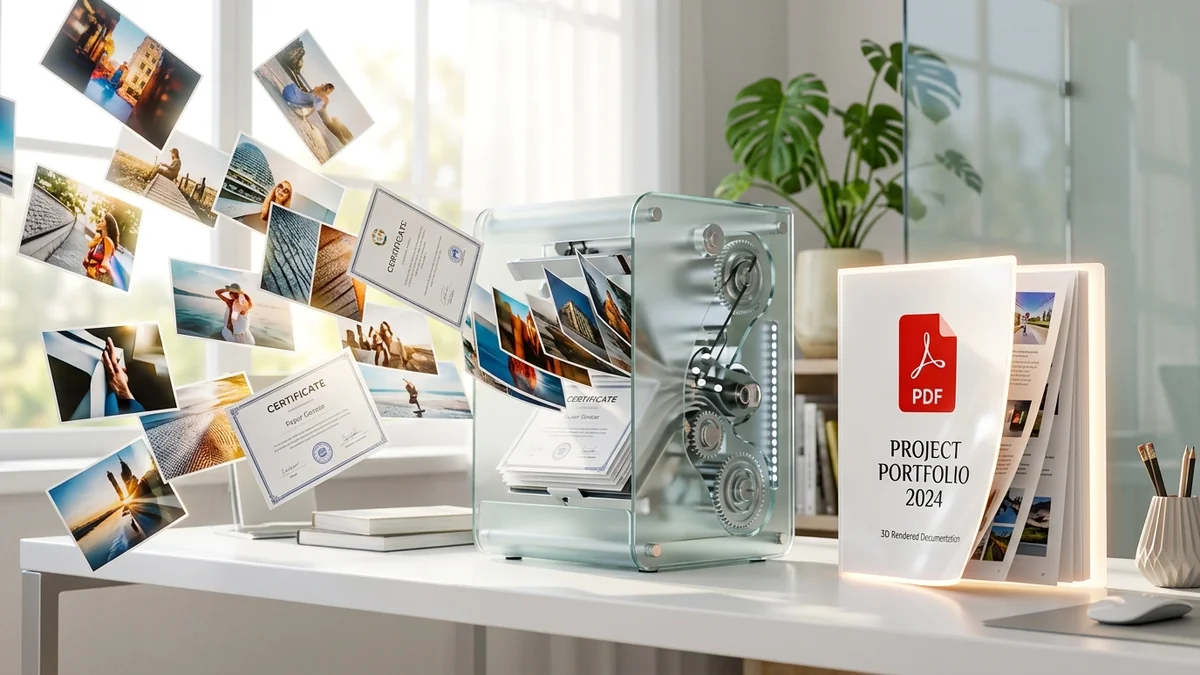
In this step-by-step masterclass, we will teach you how to merge multiple JPG, PNG, and HEIC photos into one compact, high-resolution PDF document in the exact page order you want—100% free, without watermarks, and entirely private in your browser.
The Common Challenges of Converting Images to PDF#
When combining several camera photos into a single PDF, most people run into three common technical pitfalls:
- Uncontrolled File Size Explosion: Smartphone cameras today capture 12MP to 48MP images, averaging 4MB to 8MB per photograph. Combining 5 photos directly without downsampling produces a 30MB+ PDF file that crashes submission portals (which usually enforce strict 2MB or 500KB caps).
- Mismatched Page Orientations & Aspect Ratios: Some certificate photos were taken in landscape mode while others are in portrait. Without an intelligent page layout engine, landscape certificates get cut in half or rotated 90 degrees sideways inside the PDF.
- Loss of Fine Text Clarity: Basic tools aggressively compress images into low-bitrate JPEGs, turning fine numerical grades on mark sheets and legal clauses on contracts into unreadable blurs.
Using an intelligent client-side converter like FileZenith Pics to PDF solves all three issues: images are auto-oriented, custom margins are applied, and vector font streams are preserved so that text stays razor-sharp while keeping total file size compact.
Technical Comparison: Image to PDF Conversion Methods#
Here is how different methods compare when combining 6 high-resolution document photos into a single PDF:
| Method / Software | Average PDF Size | Page Reordering | Watermarks | Privacy & Security | Cost |
|---|---|---|---|---|---|
| Microsoft Word Export | 18.5 MB (Bloated) | Clunky (Images jump across pages) | No | Local on PC | Requires MS Office |
| Typical Ad-Filled Cloud Converter | 4.8 MB | Limited or Clunky | Often adds watermarks | Uploaded to remote servers | Free with 3-file daily caps |
| Mobile Scanner Apps | 8.2 MB | Yes | "Scanned with Cam..." footer | May access phone contacts | Premium subscription prompts |
| FileZenith Client-Side Engine | 1.2 MB - 1.8 MB (Optimized) | Drag-and-Drop Visual Reordering | Zero Watermarks | 100% Client-Side WebAssembly | 100% Unlimited Free |
Step-by-Step Guide: Merge JPGs into One Clean PDF in FileZenith#
The FileZenith Pics to PDF Converter operates directly inside your web browser using HTML5 Canvas and WebAssembly. No files are uploaded to foreign cloud servers, guaranteeing complete confidentiality for personal financial and identity documents.
Step 1: Upload Your Photos
Open the FileZenith Image to PDF Tool. Drag and drop your JPG, PNG, or HEIC files into the upload area, or tap Select Images to browse your phone gallery or desktop folders. You can select all your photos at once.
Step 2: Arrange Page Order and Orientation
- Drag to Reorder: Simply drag the image thumbnails into your desired reading sequence (Page 1, Page 2, Page 3).
- Rotate Pages: If any certificate appears sideways, click the quick rotate button on that specific thumbnail to orient it upright.
- Page Size Settings: Choose standard A4 (standard for India, UK, and Europe) or US Letter (standard for North America). You can select Fit to Page to ensure no edge text is cropped.
Step 3: Configure Margins & Compression
- Margins: Select Small Margin (best for printed certificates with edge-to-edge seals) or No Margin (full bleed).
- Compression Mode: Choose Balanced Optimization for sharp readability under 2MB, or Strong Compression if your portal has a strict sub-500KB limit.
Step 4: Generate and Download Your PDF
Click Convert to PDF. In less than two seconds, your unified, professional PDF document is assembled. Click Download PDF to save it directly to your device ready for instant upload.
5 Pro Tips for Flawless Image-to-PDF Conversion#
- Shoot in Bright, Even Natural Lighting: Shadows cast by your phone or hand across a page degrade OCR (Optical Character Recognition) quality. Take document photos near a window or under direct daylight for uniform white paper backgrounds.
- Flatten Curved Pages: If scanning bound books or multi-page brochures, press pages flat before photographing to avoid distorted curved lines that look unprofessional.
- Crop Unneeded Background Objects: Crop out wooden desks, bedsheets, or keyboard edges using our Image Cropper before converting to PDF. Removing excess background pixels cuts final file size by up to 35%.
- Name Your Pages Sequentially: Before uploading from your computer, renaming your files
01-degree.jpg,02-marksheet.jpg, and03-experience.jpgensures automatic alphabetical sorting in the upload queue. - Compress Further If Still Over 200KB: If your recruitment portal demands an ultra-strict file size ceiling (like UPSC 300KB or SSC 200KB), pass your generated document through our specialized Compress PDF to 200KB utility.
Real-World Case Study: University Admission Document Submission#
Student: Ananya Patel, Postgraduate Candidate
Requirement: Ananya needed to submit her 4-year undergraduate grade sheets (8 semester mark sheets + provisional degree certificate = 9 total pages) to a central university admission portal. The portal stated: "All 9 semester mark sheets must be submitted in one PDF file not exceeding 2.5 MB. Individual uploads will be rejected."
The Problem: Ananya photographed all 9 certificates on her smartphone. The total raw file size was 28.4 MB. Basic phone converter apps either truncated her upload to 5 pages or inserted an intrusive promotional banner on page 1.
The Solution:
- Ananya accessed FileZenith Pics to PDF on her laptop browser.
- She dragged all 9 images into the grid and arranged them chronologically from Semester 1 to Semester 8 followed by the Provisional Certificate.
- Selected A4 Page Format with Balanced Compression.
- Result: A pristine, professional 1.64 MB PDF document where all credit points and signatures remained pin-sharp.
- Submitted successfully on the portal 3 days ahead of the application deadline.
Frequently Asked Questions (FAQ)#
How many images can I convert into one PDF at the same time?
There is no strict limit. FileZenith is built on high-performance browser streaming architecture, allowing you to combine 10, 20, 50, or even 100 images into a single PDF without browser crashes or throttling.
Will converting multiple photos into PDF reduce the readability of signatures or stamps?
No. FileZenith utilizes bicubic image interpolation with contrast preservation. Critical details such as college stamps, ink pen signatures, roll numbers, and small footnotes retain their sharpness.
Is it safe to convert bank statements and confidential IDs like Aadhaar on FileZenith?
Yes, 100%. FileZenith is completely client-side. The file processing takes place in your local browser sandbox through WebAssembly and JavaScript. Unlike other converter tools, your private documents are never sent over the internet or stored on cloud servers.
Mobile se multiple photos ko ek PDF me kaise convert karein?
Mobile se multiple photos ko ek PDF me merge karne ke liye FileZenith ke Pics to PDF tool par jaayein. "Select Images" par click karke apni gallery se saari photos select karein. Photos ka page order set karein aur "Convert to PDF" button dabayein. Kuch hi seconds me aapka single PDF ready ho jayega jise aap free me download kar sakte hain.
What is the difference between JPG to PDF and PDF Merge?
- JPG to PDF (Pics to PDF): Converts raster image files (.jpg, .png, .webp, .heic) into brand new PDF pages.
- Merge PDF (Merge PDF Files): Takes two or more pre-existing PDF documents and stitches their existing pages together into one master PDF.
Related Document Tools & Guides#
- Pics to PDF Converter — Fast, client-side photo-to-PDF compiler with custom page ordering.
- Compress PDF Online — Reduce your generated PDF file size below 200KB or 500KB.
- Merge PDF Files Free — Combine multiple existing PDF documents into one unified file.
- Convert Scanned PDF to Word — Extract and edit text from scanned PDF certificates.
- Split PDF Pages — Extract specific pages or divide a multi-page document into chapters.
Explore Related FileZenith Tools
- The Common Challenges of Converting Images to PDF
- Technical Comparison: Image to PDF Conversion Methods
- Step-by-Step Guide: Merge JPGs into One Clean PDF in FileZenith
- 5 Pro Tips for Flawless Image-to-PDF Conversion
- Real-World Case Study: University Admission Document Submission
- Frequently Asked Questions (FAQ)
- Related Document Tools & Guides