

How to Merge Multiple PDF Files into One Document for Free
Combine multiple PDF documents, receipts, certificates, and scans into a single organized PDF file securely inside your browser.
Reviewed by FileZenith Editorial Board
Fact-Checked for Official 2026-27 Notification Standards
Dimensions, file size rules, and accepted formats are verified against current SSC, UPSC, NTA, and State PSC guidelines. Zero-server guarantee: images and signatures are processed locally inside your web browser.
Use Tool Directly in Browser
Your files never leave your browser. 100% free, zero login required.
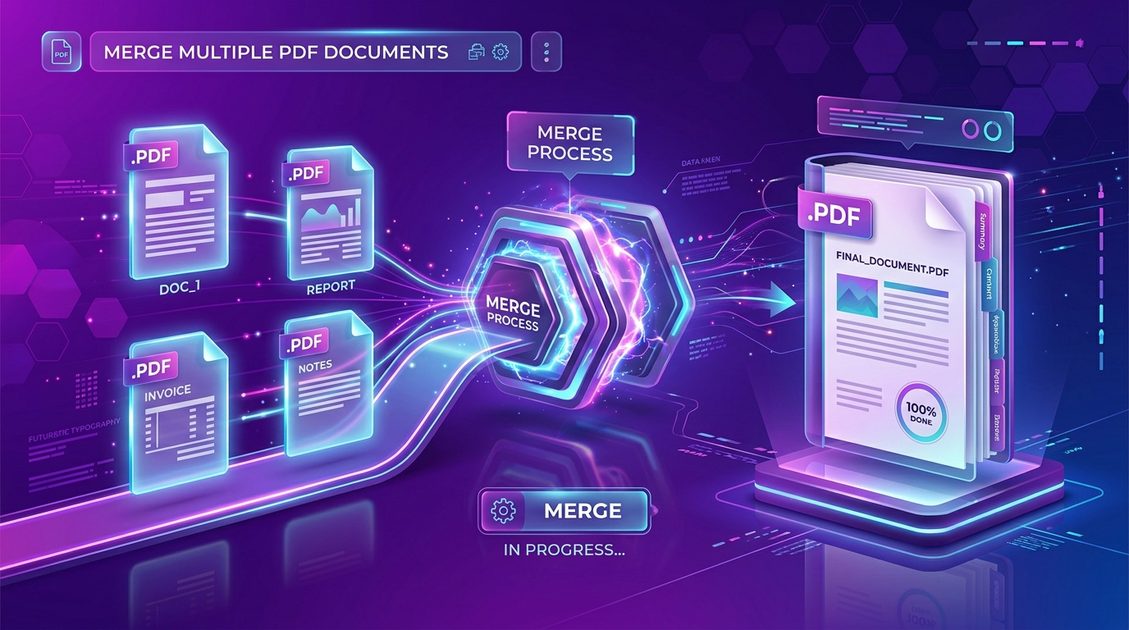
Combining multiple separate PDF files into a single structured document is essential for submitting job applications, organizing tax records, bundling contract schedules, and sharing reports.
With FileZenith, merging PDFs is fast, private, and unlimited. Your files are combined locally on your computer or smartphone without cloud server uploads.
Key Benefits of Merging PDF Files Privately#
Traditional online PDF joiners upload your private documents to third-party cloud servers. FileZenith processes files using client-side JavaScript & WebAssembly APIs:
- 100% Privacy Protection: Bank statements, tax filings, and personal IDs remain 100% private on your device.
- Instant Processing: Zero upload wait times—even large multi-page PDF documents merge instantly.
- Custom Page Ordering: Drag and reorder document thumbnails before merging into the final PDF.
3-Step Guide: How to Combine PDF Files Free#
Follow these simple steps to join your PDFs into a single document:
Step 1: Upload Your PDF Files
Navigate to the FileZenith PDF Merger. Drag and drop all the PDF files you wish to join onto the upload area.
Step 2: Arrange Page & File Sequence
Drag individual document cards to arrange them in your exact preferred sequence. You can add more files at any point.
Step 3: Combine & Download
Click Merge PDF Files. The engine merges the PDF streams locally in seconds. Click Download Combined PDF to save the merged document to your device.
Frequently Asked Questions (FAQ)#
Can I merge PDF files on Android or iPhone?
Yes! FileZenith works seamlessly on mobile web browsers including Mobile Chrome, Safari, Samsung Internet, and Firefox with zero app installation required.
Is there a file size or page count limit for merging?
No! Because processing occurs directly inside your device's browser memory, there are no artificial file size caps or daily submission limits.
Can I merge images (JPG/PNG) into a single PDF?
Yes! If you have photos, scans, or receipts, use our Pics to PDF Converter to transform images into a structured PDF document.