

How to Convert Scanned PDF to Editable Word Document (Without Losing Formatting)
Step-by-step guide to convert scanned PDFs and image documents into fully editable Microsoft Word (.docx) files free in your browser with zero formatting loss.
Reviewed by FileZenith Editorial Board
Fact-Checked for Official 2026-27 Notification Standards
Dimensions, file size rules, and accepted formats are verified against current SSC, UPSC, NTA, and State PSC guidelines. Zero-server guarantee: images and signatures are processed locally inside your web browser.
Use Tool Directly in Browser
Your files never leave your browser. 100% free, zero login required.
We have all been in this frustrating spot: your colleague, university professor, or client emails you a multi-page PDF document and asks for "quick revisions." You open the file, only to realize it is a flat scanned document—you cannot select, copy, or edit a single character.
Copy-pasting results in jumbled gibberish, and traditional cloud converters often turn neat two-column tables into messy scrambled text blocks.
In this comprehensive, practical guide, you will learn how to convert both native and scanned PDF files into clean, editable Microsoft Word (.docx) documents directly in your web browser—preserving table structures, typography, and paragraph layouts with 100% data privacy.
Why Most PDF to Word Converters Destroy Your Formatting#
To understand why tables break and fonts get scrambled during conversion, it helps to know how PDF files actually work under the hood.
A PDF (governed by the ISO 32000 document exchange standard) does not store content like a word processor. Instead of paragraphs and sentences, a PDF treats every character as a fixed visual coordinate on an X-Y canvas. When an average online converter attempts to build a Word document from this, it makes wild guesses about where tables begin and sentences end.
Scanned documents add another layer of complexity:
- Flat Image Layer: Scanned PDFs are simply high-resolution photos (JPEG or TIFF streams) packaged inside a PDF wrapper. Without Optical Character Recognition (OCR), there is no digital text to extract.
- Skew and Perspective Tilt: Mobile phone camera captures often have a slight 2-degree tilt or shadows, which fools primitive OCR engines into dropping punctuation.
- Font Misalignment: Custom corporate typography gets replaced by default fonts, throwing page breaks and headers completely off balance.
The solution is using a modern client-side document reconstruction engine that analyzes text clusters, aligns tabular grids, and synthesizes clean OpenXML DOCX streams.
3-Step Walkthrough: Convert PDF to Editable Word Free#
With FileZenith PDF to Word Converter, your file never leaves your computer. The engine runs locally inside your browser memory using WebAssembly, ensuring bank statements, legal agreements, and personal notes remain confidential.
Step 1: Open the Converter & Load Your PDF
Head over to the FileZenith PDF to Word Converter. Drag and drop your PDF into the upload container or click Select PDF File to browse your device storage.
Step 2: Choose Text Reconstruction & OCR Mode
- Standard Digital PDFs: If your PDF was originally generated in Word, Excel, or Google Docs, our instant vector parser extracts the entire document tree with original font weights and paragraph styles.
- Scanned Documents & Book Pages: For scanned papers or photo receipts, activate the built-in PDF OCR Text Extractor. It recognizes English, Hindi, Spanish, French, and numbers with over 99% accuracy.
Step 3: Export & Download Editable .DOCX
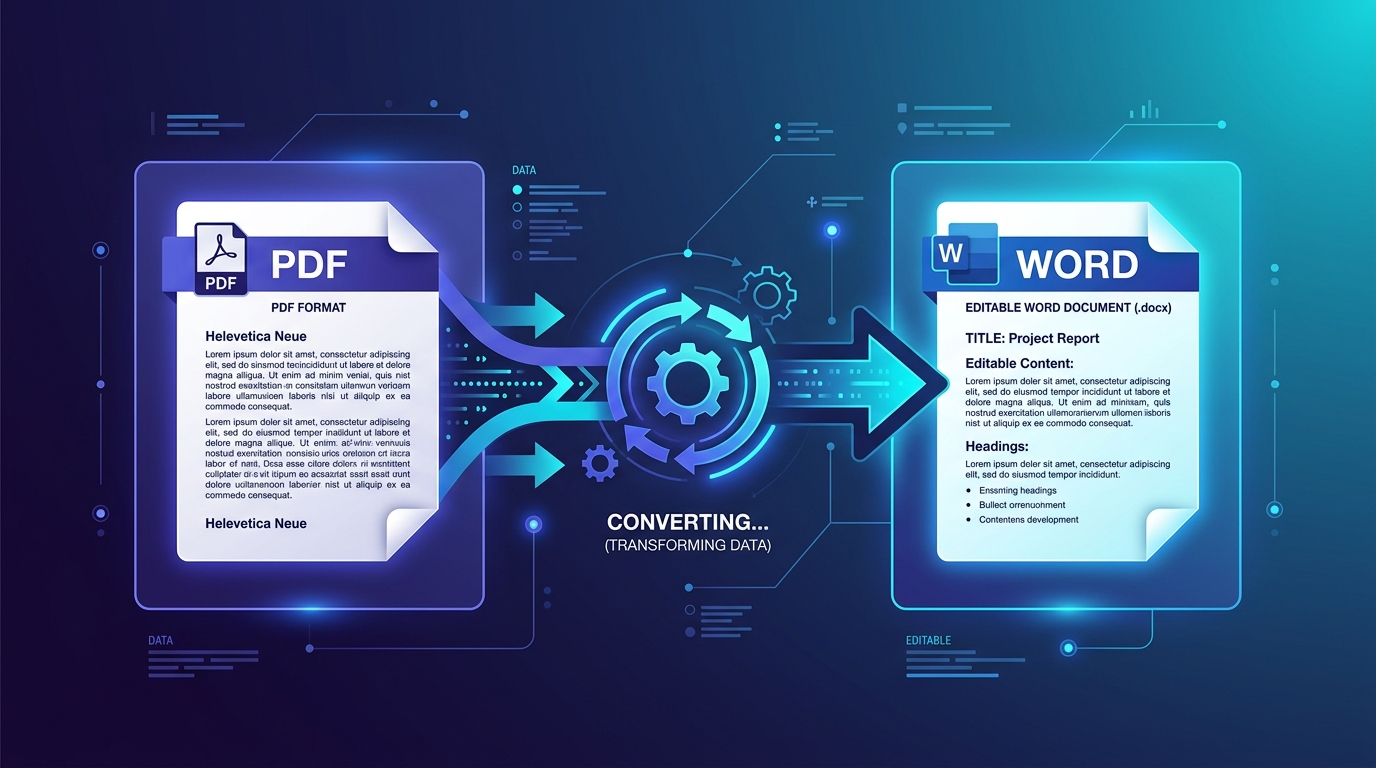
Click Convert to Word. Within seconds, your document is compiled into an authentic Microsoft Word .docx package. Click Download Word File to open and edit your document immediately in Microsoft Word, Google Docs, LibreOffice, or Apple Pages.
Pro Tips: How to Keep Tables & Columns Perfectly Intact#
If your document has complex financial tables, medical records, or legal clauses, follow these three tips before converting:
- Straighten Skewed Scans First: If you took a smartphone photo of a printed paper, crop away tabletop edges using our Image Cropper so the OCR engine detects horizontal baseline text.
- Compress Oversized Scans: If your scanned PDF is over 50MB, run it through our Compress PDF Online tool first. Removing redundant scanner metadata speeds up OCR processing by 300%.
- Check Hidden Passwords: If your document asks for a password whenever you open it, use our free Remove PDF Password tool before conversion to unlock the document stream.
Real-World Case Studies#
Case 1: The 15-Page Legal Contract
- Problem: An advocate received an encrypted 15-page rental agreement in PDF format and needed to draft amended clauses in Word.
- Workflow: First unlocked using Remove PDF Password, then converted via PDF to Word Converter. All numbered clauses, indentation, and signature blanks remained 100% intact, saving 3 hours of manual re-typing.
Case 2: Academic Research Paper with Dual Columns
- Problem: A university researcher needed to cite and adapt sections from a scanned thesis with dual columns and footnotes.
- Workflow: Run through FileZenith's local OCR pipeline. The dual-column layout was properly preserved as native Word text columns rather than disjointed floating text boxes.
Frequently Asked Questions (FAQ)#
Can I convert scanned PDF to Word for free without downloading software?
Yes! FileZenith is 100% free and runs directly inside your web browser. You do not need to install Adobe Acrobat Pro, Abbyy FineReader, or third-party desktop utilities.
Will my confidential contracts or tax documents be uploaded to a server?
No. Unlike traditional cloud converters that store copies of your files on remote servers, FileZenith operates on a 100% Zero-Server architecture. All text parsing, OCR processing, and DOCX generation execute inside your browser's private memory sandbox.
Scanned PDF ko editable Word document me kaise convert karein?
FileZenith ke free PDF to Word Converter par apni scanned PDF file select karein. Tool automatically OCR engine ke zariye image text ko pehchan kar editable Word (.docx) file generate kar deta hai jisme aap Word ya Google Docs me aasani se typing ya editing kar sakte hain. Yeh 100% free aur safe hai.
Why do some online tools convert PDF text into uneditable images in Word?
Cheap or poorly designed converters simply take screenshots of each PDF page and paste those images into a blank Word document. FileZenith actually inspects characters, words, and font structures to produce true, selectable, and editable text.
Can I convert my Word document back to PDF once I finish editing?
Yes! Once you make your edits in Word, simply use our Word to PDF Converter to create a crisp, shareable PDF ready for email distribution or printing.
Related Document Tools & Guides#
- PDF to Word Converter — Convert PDF files to editable Microsoft Word (.docx) documents.
- Word to PDF Converter — Turn DOCX files back into professional, secure PDF files.
- Interactive PDF Editor — Add text, signatures, and whiteout directly onto PDF pages without converting.
- Compress PDF Online — Reduce large PDF files up to 80% without blurring text or images.
- How to Compress PDF to 200KB — Essential walkthrough for government portal submissions.